
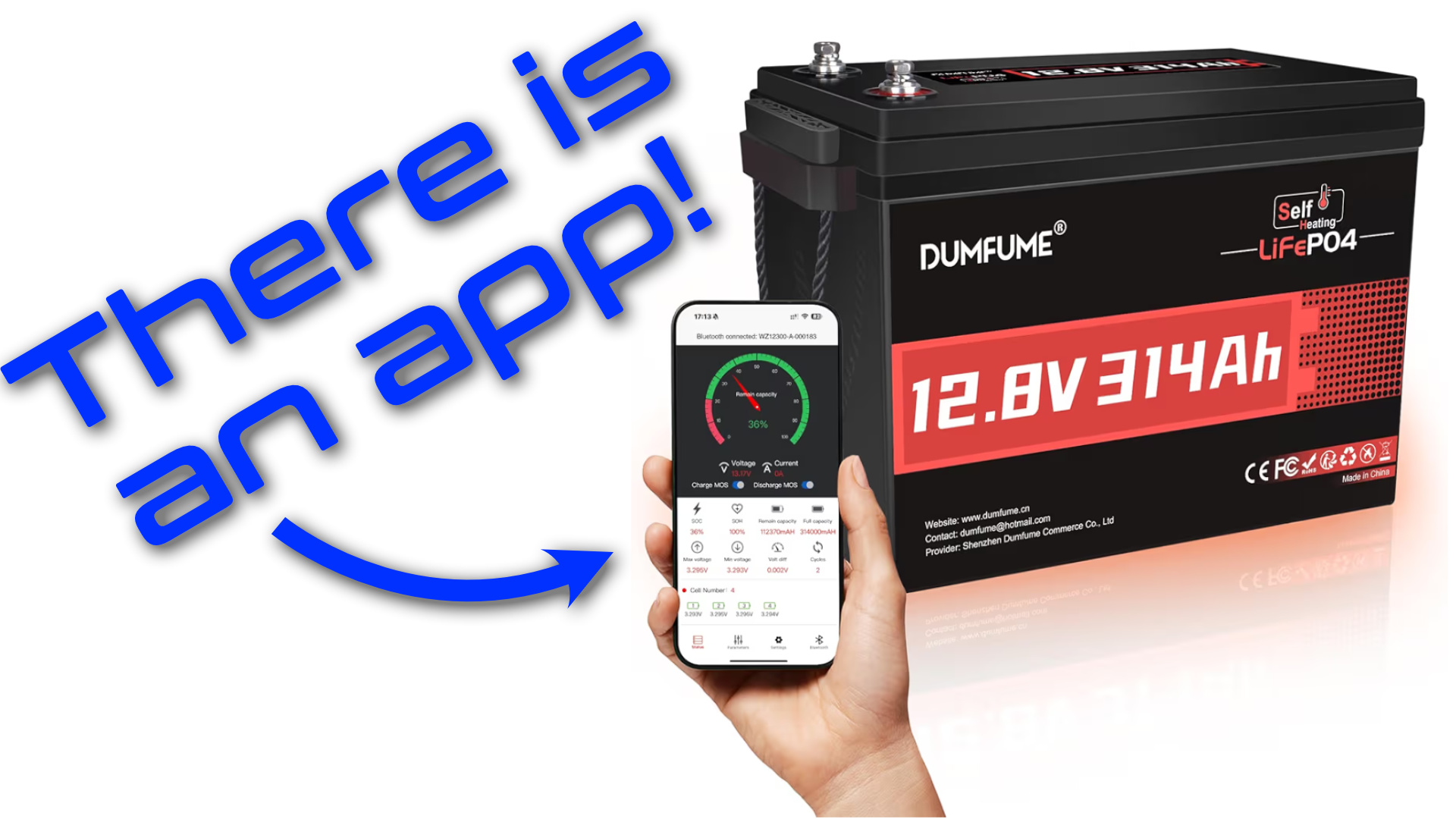
HUGE UPDATE:
I went ahead and made my own app, called BMS Buddy, for these Dumfume batteries. It is free and you can download it here:
https://github.com/theserialhobbyist/bms-buddy
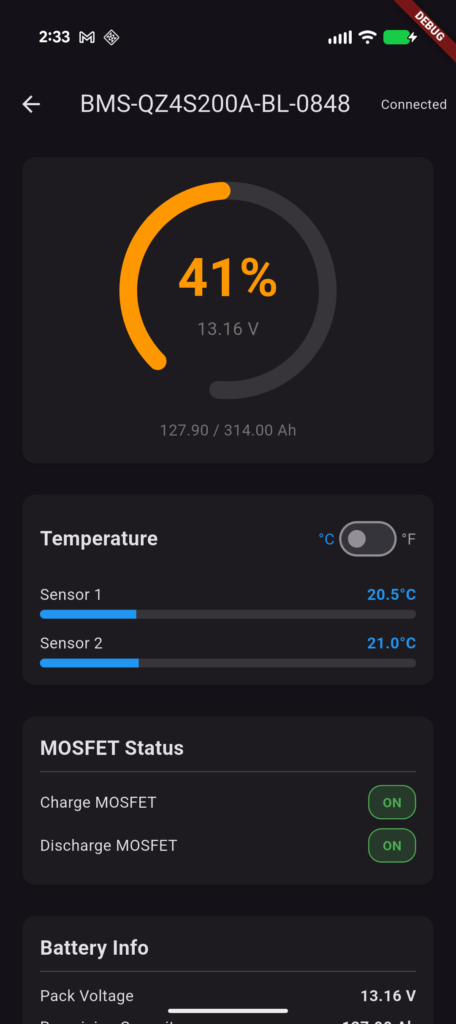
There is an Android (APK) and a Windows version. Unfortunately, iOS is a lot harder to release/distribute. But if there is interest, I can do look further into it.
Or if you happen to be an iOS dev who has experience with that sort of thing and want to partner on this, get in touch!
The Original Story
You’re here because the Dumfume LiFePO4 battery listing mentioned an BMS monitoring app, but you can’t find that app, right? Good news: it is available and I’m going to tell you how to get it.
In my case, I have the Dumfume 314Ah self-heating LiFePO4 from Amazon (that’s an affiliate link). The listing specifically says it has Bluetooth, but a lot of people seem to think it doesn’t. It does!

It is just hard to find the app, which is why I’m writing this.
Bms Blue Tooth App
The app you need is called “Bms Blue Tooth” and is spelled/formatted that way.
If you have an iPhone or iPad, you should be able to search for that in the App Store and download it. I verified that using my wife’s iPhone.
But if you have an Android, the app is not available in the Play Store. You have to download and install the .apk file yourself.
If you contact Dumfume support, they will send you a photo showing a laptop with a QR code on the screen. If you scan that QR code, it will take you to the download page.
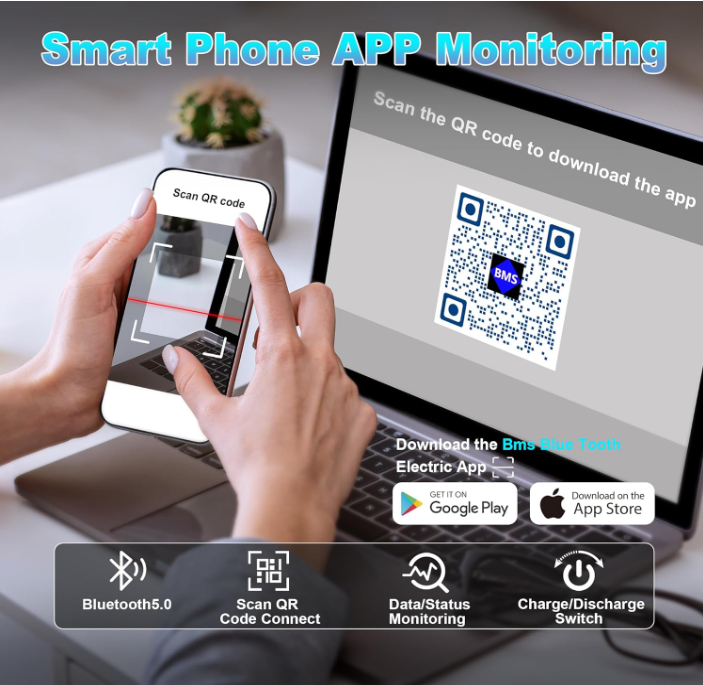
To save you the trouble, that is: https://scan.erweicaihong.cn/NLP8
As a less shady backup, I also uploaded the .apk to Archive.org and hopefully it won’t get taken down: https://archive.org/details/bms-blue-tooth-1.0.68
Click the Android option, then “install” to download the .apk file. If you don’t have an ad blocker, you’ll see ads that look like download links but are spam. You also don’t need to install any kind of app manager.
However, Android and Chrome think this is unsafe. They won’t let you download or install it unless you change permissions. In Chrome, you need to lower the security protection to minimum. Then you need to tell Android it is okay to install developer apps and that it is okay to install old, unsecure apps.
After you do those things, you should be able to download the .apk and click the downloaded file to install the app.
Using the App
Using the app is actually pretty easy. Just open it and allow all permissions. click the “Bluetooth” tab on the bottom, then “Search Bluetooth.”
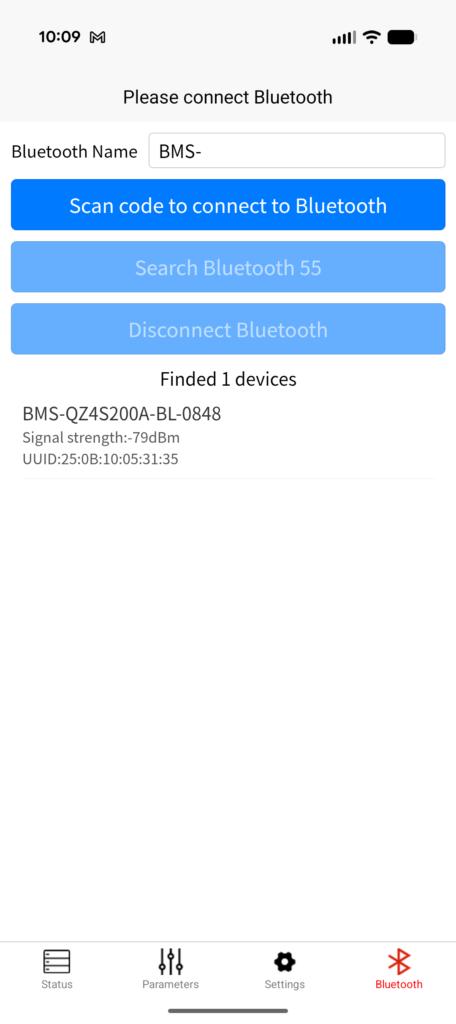
Within a few seconds, it should find your battery. Mine comes up as “BMS-QZ4S200A-BL-0848.” Click on that, then go back to the “Status” tab to see information about your battery!
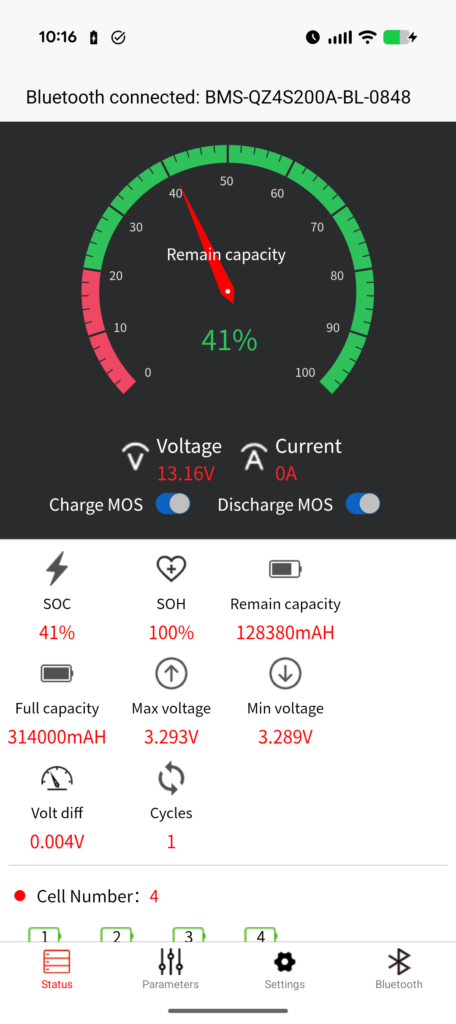
I think the “Charge MOS” and “Discharge MOS” toggles control the MOSFET switches that allow charging and discharging, respectively. So, in theory, you can use them like disconnect switches if you want.
Correction: I don’t think those are switches. I think they are just indicators of the MOSFET statuses. As far as I can tell right now, there is not a way to to disconnect the battery through the app.
Further Investigation
I am pretty uncomfortable with having to disable all of those security checks to use this app. That is pretty sketchy.
I’m considering developing an app of my own for monitoring these Dumfume batteries, so please let me know if that’s something you’re interested in.
I did: https://github.com/theserialhobbyist/bms-buddy

When checking the battery status, the app tells me that the BMS version is P4S200A-50883-1.10 and that seems to correspond to the Pace 4S 200A BMS. It looks like that publishes data through simple Bluetooth characteristics, so creating an app shouldn’t be that hard.
I have tried using the PACEEX app, but haven’t been able to get it work, including by creating QR codes with the Dumfume battery’s name and UUID.
From what I can tell, the PACEEX app expects the battery to have a name starting with “PC-” and will ignore anything that doesn’t.
I also tried a handful of other free BMS apps, but couldn’t get any working.
Again, please let me know if you’d like me to develop an app for this. If there is enough interest, I’ll dive into that.
I did make an app! https://github.com/theserialhobbyist/bms-buddy


Leave a Reply to Cameron Coward Cancel reply